ローカル処理

アイコンリサイズ

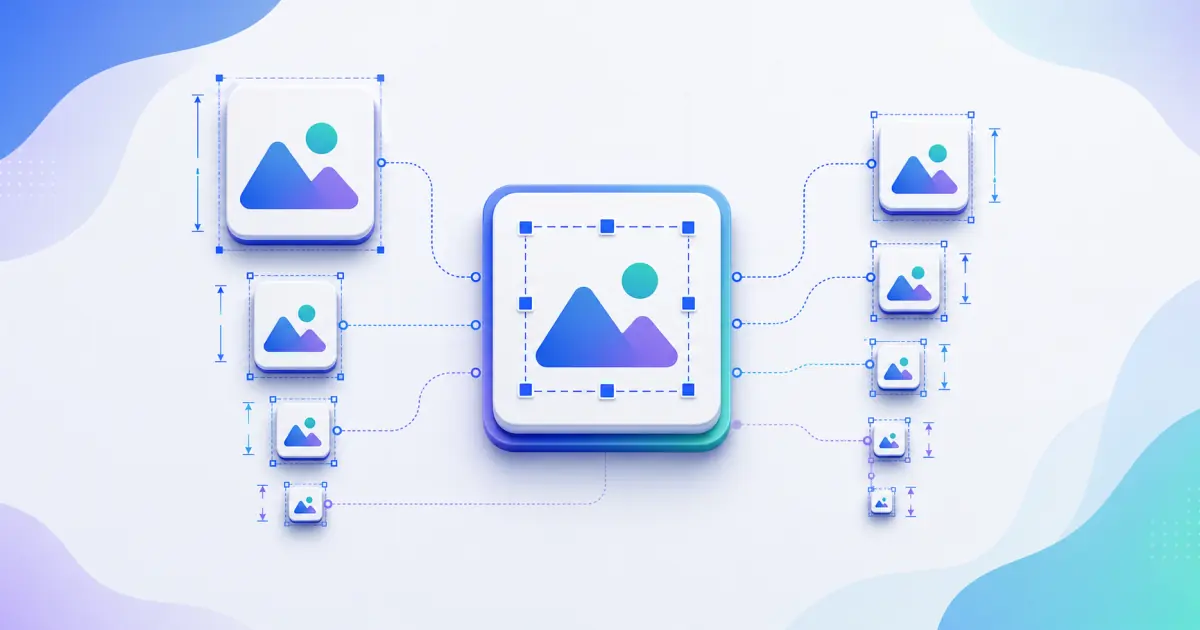
アイコンリサイズ resizes a PNG, JPG, WebP, or SVG icon into many square PNG outputs such as 16x16, 32x32, 128x128, 256x256, and 512x512.

Runs locallyNo uploadYour input is processed in your browser.

アイコンリサイズ

PNG、JPG、WebP、SVG を一般的な正方形サイズへ変換し、contain、cover、透明、背景色、ZIP に対応します。

このツールとは?

An icon resizer is a batch resizing tool for website icons, browser extensions, desktop shortcuts, PWA icons, plugin assets, and app handoff packages. It keeps the workflow simple: choose sizes, preview them, then download individual PNG files or a ZIP.

対応入力形式

  • PNG images
  • JPG and JPEG images
  • WebP images
  • SVG logos and icons
  • Square source artwork is recommended
  • Large files should be kept under 10 MB for smooth browser processing

出力ファイル

  • icon-16.png
  • icon-24.png
  • icon-32.png
  • icon-48.png
  • icon-64.png
  • icon-128.png
  • icon-256.png
  • icon-512.png
  • custom square PNG sizes
  • lumatool-icon-sizes.zip

サイズガイド

  • 16x16: browser small icon.
  • 24x24: compact UI icon.
  • 32x32: toolbar or favicon output.
  • 48x48: desktop shortcut.
  • 128x128: extension or plugin icon.
  • 256x256: high-resolution desktop icon.
  • 512x512: PWA or app handoff icon.

入力例

  • Company logo PNG
  • Personal blog avatar
  • SaaS product mark
  • SVG logo
  • Transparent square icon

出力例

  • icon-16.png
  • icon-24.png
  • icon-32.png
  • icon-48.png
  • icon-64.png
  • icon-128.png

よくある用途

  • Create browser extension icon sizes from one SVG or PNG.
  • Generate toolbar, desktop, plugin, and PWA PNG assets in one ZIP.
  • Check tiny 16x16 and 32x32 readability before shipping.
  • Add custom square sizes for internal design systems.
  • Batch resize icons without installing a desktop utility.

ベストプラクティス

  • Start from high-resolution square artwork when possible.
  • Keep the subject centered and avoid tiny text inside small icons.
  • Use transparent backgrounds only when the mark remains visible on light and dark surfaces.
  • Use consistent file paths between exported files and HTML code.
  • After replacing favicons, clear browser cache or change filenames if the old icon remains visible.

よくあるミス

  • Uploading a low-resolution source and expecting sharp large icons.
  • Using artwork that touches the edge and gets clipped after rounding or cover mode.
  • Shipping only favicon.ico and forgetting Apple Touch Icon or manifest icons.
  • Leaving HTML paths that do not match the files in the public folder.
  • Not previewing 16x16 and 32x32 outputs before release.

プライバシーとローカル処理

ファイルはブラウザ内でローカル処理され、LumaTool サーバーへアップロードされません。画像の読み込み、Canvas リサイズ、ICO、ZIP、manifest、HTML 生成はクライアント側で完了します。
入力例

入力例
Company logo PNG
Personal blog avatar
SaaS product mark
出力例
icon-16.png
icon-24.png
icon-32.png

アイコンリサイズ resizes a PNG, JPG, WebP, or SVG icon into many square PNG outputs such as 16x16, 32x32, 128x128, 256x256, and 512x512.

出力例

入力例
one source icon image
出力例
icon-16.png
icon-24.png
icon-32.png
icon-48.png
icon-64.png

ファイルはブラウザ内でローカル処理され、LumaTool サーバーへアップロードされません。画像の読み込み、Canvas リサイズ、ICO、ZIP、manifest、HTML 生成はクライアント側で完了します。

プライバシーに関する注意

ファイルはブラウザ内でローカル処理され、LumaTool サーバーへアップロードされません。画像の読み込み、Canvas リサイズ、ICO、ZIP、manifest、HTML 生成はクライアント側で完了します。

使い方

  1. ステップ 1. 画像をアップロードするか、アイコンパスを入力します。
  2. ステップ 2. Web サイト、アプリ、PWA に合う出力を選びます。
  3. ステップ 3. プレビュー、生成ファイル、manifest、HTML を確認します。
  4. ステップ 4. 単体ファイル、ZIP、または生成コードを利用します。

実際の利用例

Create browser extension icon sizes from one SVG or PNG

Create browser extension icon sizes from one SVG or PNG.

Generate toolbar, desktop, plugin, and PWA PNG assets in one ZIP

Generate toolbar, desktop, plugin, and PWA PNG assets in one ZIP.

Check tiny 16x16 and 32x32 readability before shipping

Check tiny 16x16 and 32x32 readability before shipping.

主な用途

  • Create browser extension icon sizes from one SVG or PNG.
  • Generate toolbar, desktop, plugin, and PWA PNG assets in one ZIP.
  • Check tiny 16x16 and 32x32 readability before shipping.
  • Add custom square sizes for internal design systems.
  • Batch resize icons without installing a desktop utility.

FAQ

Can I resize SVG icons?

Yes. SVG input is sanitized, rendered locally, and exported as PNG sizes.

Will the icon be uploaded?

いいえ。処理はブラウザ内で行われ、ファイルは LumaTool サーバーへ送信されません。

Can I keep the transparent background?

Yes. Keep transparent background enabled, or choose a custom background color for non-transparent PNG output.

What is the best size for icons?

It depends on the target. Check 16x16 and 32x32 for favicons, 128x128 for extensions, and 512x512 for PWA or app handoff.

Can I download all sizes at once?

Yes. Generate the selected sizes and download the ZIP package.

What is the difference between cover and contain mode?

Contain keeps the full image visible with possible padding. Cover fills the square and may crop edges.

アイコンリサイズ は何に向いていますか?

アイコンリサイズ は、ブラウザ上で素早く確認、変換、整理、整形したい アイコンツール 系の作業に向いています。

入力内容はどのように扱われますか?

ファイルはブラウザ内でローカル処理され、LumaTool サーバーへアップロードされません。画像の読み込み、Canvas リサイズ、ICO、ZIP、manifest、HTML 生成はクライアント側で完了します。

関連ツール