로컬 처리

아이콘 리사이저

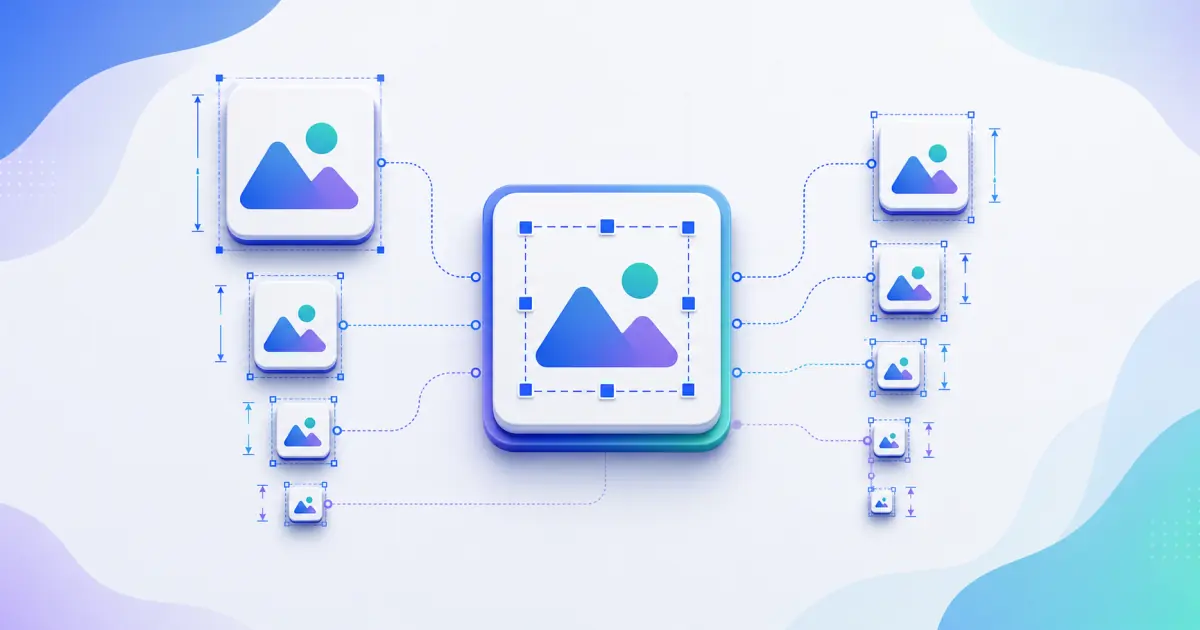
아이콘 리사이저 resizes a PNG, JPG, WebP, or SVG icon into many square PNG outputs such as 16x16, 32x32, 128x128, 256x256, and 512x512.

Runs locallyNo uploadYour input is processed in your browser.

아이콘 리사이저

PNG, JPG, WebP, SVG 아이콘을 일반 사각 크기로 만들고 contain, cover, 투명, 배경색, ZIP을 지원합니다.

이 도구란?

An icon resizer is a batch resizing tool for website icons, browser extensions, desktop shortcuts, PWA icons, plugin assets, and app handoff packages. It keeps the workflow simple: choose sizes, preview them, then download individual PNG files or a ZIP.

지원 입력 형식

  • PNG images
  • JPG and JPEG images
  • WebP images
  • SVG logos and icons
  • Square source artwork is recommended
  • Large files should be kept under 10 MB for smooth browser processing

출력 파일

  • icon-16.png
  • icon-24.png
  • icon-32.png
  • icon-48.png
  • icon-64.png
  • icon-128.png
  • icon-256.png
  • icon-512.png
  • custom square PNG sizes
  • lumatool-icon-sizes.zip

크기 가이드

  • 16x16: browser small icon.
  • 24x24: compact UI icon.
  • 32x32: toolbar or favicon output.
  • 48x48: desktop shortcut.
  • 128x128: extension or plugin icon.
  • 256x256: high-resolution desktop icon.
  • 512x512: PWA or app handoff icon.

입력 예시

  • Company logo PNG
  • Personal blog avatar
  • SaaS product mark
  • SVG logo
  • Transparent square icon

출력 예시

  • icon-16.png
  • icon-24.png
  • icon-32.png
  • icon-48.png
  • icon-64.png
  • icon-128.png

일반 사용 사례

  • Create browser extension icon sizes from one SVG or PNG.
  • Generate toolbar, desktop, plugin, and PWA PNG assets in one ZIP.
  • Check tiny 16x16 and 32x32 readability before shipping.
  • Add custom square sizes for internal design systems.
  • Batch resize icons without installing a desktop utility.

권장 방법

  • Start from high-resolution square artwork when possible.
  • Keep the subject centered and avoid tiny text inside small icons.
  • Use transparent backgrounds only when the mark remains visible on light and dark surfaces.
  • Use consistent file paths between exported files and HTML code.
  • After replacing favicons, clear browser cache or change filenames if the old icon remains visible.

흔한 실수

  • Uploading a low-resolution source and expecting sharp large icons.
  • Using artwork that touches the edge and gets clipped after rounding or cover mode.
  • Shipping only favicon.ico and forgetting Apple Touch Icon or manifest icons.
  • Leaving HTML paths that do not match the files in the public folder.
  • Not previewing 16x16 and 32x32 outputs before release.

개인정보 및 로컬 처리

파일은 브라우저에서 로컬로 처리되며 LumaTool 서버에 업로드되지 않습니다. 이미지 디코딩, Canvas 크기 조정, ICO/ZIP, manifest, HTML 생성은 클라이언트에서 완료됩니다.
예시

입력 예시

입력 예시
Company logo PNG
Personal blog avatar
SaaS product mark
출력 예시
icon-16.png
icon-24.png
icon-32.png

아이콘 리사이저 resizes a PNG, JPG, WebP, or SVG icon into many square PNG outputs such as 16x16, 32x32, 128x128, 256x256, and 512x512.

출력 예시

입력 예시
one source icon image
출력 예시
icon-16.png
icon-24.png
icon-32.png
icon-48.png
icon-64.png

파일은 브라우저에서 로컬로 처리되며 LumaTool 서버에 업로드되지 않습니다. 이미지 디코딩, Canvas 크기 조정, ICO/ZIP, manifest, HTML 생성은 클라이언트에서 완료됩니다.

개인정보 안내

파일은 브라우저에서 로컬로 처리되며 LumaTool 서버에 업로드되지 않습니다. 이미지 디코딩, Canvas 크기 조정, ICO/ZIP, manifest, HTML 생성은 클라이언트에서 완료됩니다.

사용 방법

  1. 1단계. 이미지를 업로드하거나 아이콘 경로를 입력합니다.
  2. 2단계. 웹사이트, 앱, PWA에 맞는 출력 옵션을 선택합니다.
  3. 3단계. 미리보기, 생성 파일, manifest, HTML 코드를 확인합니다.
  4. 4단계. 개별 파일, ZIP 또는 생성 코드를 사용합니다.

실제 사용 예시

Create browser extension icon sizes from one SVG or PNG

Create browser extension icon sizes from one SVG or PNG.

Generate toolbar, desktop, plugin, and PWA PNG assets in one ZIP

Generate toolbar, desktop, plugin, and PWA PNG assets in one ZIP.

Check tiny 16x16 and 32x32 readability before shipping

Check tiny 16x16 and 32x32 readability before shipping.

주요 사용 사례

  • Create browser extension icon sizes from one SVG or PNG.
  • Generate toolbar, desktop, plugin, and PWA PNG assets in one ZIP.
  • Check tiny 16x16 and 32x32 readability before shipping.
  • Add custom square sizes for internal design systems.
  • Batch resize icons without installing a desktop utility.

FAQ

Can I resize SVG icons?

Yes. SVG input is sanitized, rendered locally, and exported as PNG sizes.

Will the icon be uploaded?

아니요. 처리는 브라우저에서 로컬로 실행되며 파일은 LumaTool 서버로 업로드되지 않습니다.

Can I keep the transparent background?

Yes. Keep transparent background enabled, or choose a custom background color for non-transparent PNG output.

What is the best size for icons?

It depends on the target. Check 16x16 and 32x32 for favicons, 128x128 for extensions, and 512x512 for PWA or app handoff.

Can I download all sizes at once?

Yes. Generate the selected sizes and download the ZIP package.

What is the difference between cover and contain mode?

Contain keeps the full image visible with possible padding. Cover fills the square and may crop edges.

아이콘 리사이저은 어떤 작업에 적합한가요?

아이콘 리사이저은 브라우저에서 빠르게 확인, 변환, 정리, 포맷팅해야 하는 아이콘 도구 작업에 적합합니다.

입력 내용은 어떻게 처리되나요?

파일은 브라우저에서 로컬로 처리되며 LumaTool 서버에 업로드되지 않습니다. 이미지 디코딩, Canvas 크기 조정, ICO/ZIP, manifest, HTML 생성은 클라이언트에서 완료됩니다.

관련 도구