
Local Processing

Image to Video Prompt Builder

Image to Video Prompt Builder helps video creators, product marketers, designers, storyboard artists, and social media teams turn a reference image description into a structured English prompt for Luma AI image-to-video generation. Use it when your input is a reference image description, subject details, motion idea, camera plan, style direction, and constraints and you need a complete image-to-video prompt with image description, motion plan, camera movement, subject consistency notes, style direction, and negative constraints. it separates what is visible in the image from what should move, so the generated prompt is easier to read, revise, and test.

Runs locallyNo uploadYour input is processed in your browser.
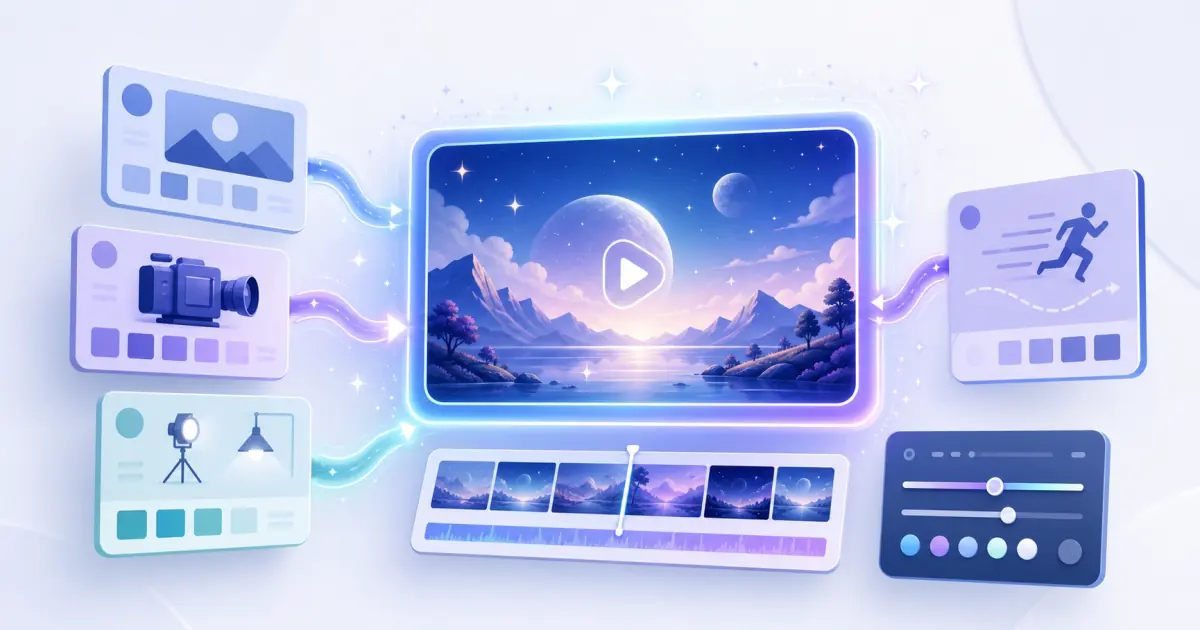
Image to Video Prompt Builder online tool preview
Image to Video Prompt Builder Image to Video Prompt Builder helps video creators, product marketers, designers, storyboard artists, and social media teams turn a reference image description into a structured English prompt for Luma AI image-to-video generation. Use it when your input is a reference image description, subject details, motion idea, camera plan, style direction, and constraints and you need a complete image-to-video prompt with image description, motion plan, camera movement, subject consistency notes, style direction, and negative constraints. it separates what is visible in the image from what should move, so the generated prompt is easier to read, revise, and test.

Image to Video Prompt Builder

Turn an image description into a Luma AI image-to-video prompt with scene motion, camera direction, timing, and continuity notes.

What is this tool?

Image to Video Prompt Builder helps video creators, product marketers, designers, storyboard artists, and social media teams turn a reference image description into a structured English prompt for Luma AI image-to-video generation. Use it when your input is a reference image description, subject details, motion idea, camera plan, style direction, and constraints and you need a complete image-to-video prompt with image description, motion plan, camera movement, subject consistency notes, style direction, and negative constraints. it separates what is visible in the image from what should move, so the generated prompt is easier to read, revise, and test.

Templates and test cases

  • Portrait to cinematic video: Image description: close portrait of a person with clear facial structure, clothing, and background. Motion plan: subtle breathing, gentle head turn, soft hair movement. Camera movement: slow push in with shallow depth of field. Subject consistency: preserve face, outfit, skin tone, and identity. Style direction: cinematic, realistic, soft lighting, natural motion. Negative constraints: no face morphing, no extra limbs, no sudden scene change.
  • Product shot: Image description: premium bottle on a reflective table with visible label and cap. Motion plan: condensation glints and background light shifts slightly. Camera movement: controlled orbit with a close-up finish. Subject consistency: preserve product geometry, label text area, color, and proportions. Style direction: commercial, high detail, dramatic lighting. Negative constraints: no warped logo, no duplicate product, no melted edges.
  • Travel landscape: Image description: wide mountain lake at sunrise with a small cabin and calm water. Motion plan: clouds drift, lake ripples, mist moves slowly. Camera movement: drone shot pulling out into a wide shot. Subject consistency: keep mountain silhouette and cabin position stable. Style direction: documentary, realistic, natural motion. Negative constraints: no impossible geography, no abrupt weather change.
  • Food commercial: Image description: close-up of noodles in a ceramic bowl with steam and garnish. Motion plan: steam rises, sauce glistens, chopsticks lift one strand. Camera movement: slow dolly in with focus transition from garnish to noodles. Subject consistency: keep bowl shape, ingredients, and portion stable. Style direction: commercial, high detail, soft lighting. Negative constraints: no floating food, no texture collapse.
  • Fantasy scene: Image description: armored traveler at the edge of a glowing forest gate. Motion plan: leaves swirl, portal light pulses, cloak moves in wind. Camera movement: handheld push in with slight tilt up. Subject consistency: preserve armor silhouette, face, and gate location. Style direction: cinematic fantasy, dramatic lighting, high detail. Negative constraints: no identity drift, no extra characters, no chaotic camera.

Best practices

  • Describe the subject first: who or what it is, visible shape, clothing, product material, facial features, and position in frame.
  • Separate scene description from motion description so the model can keep the reference image stable while animating only selected elements.
  • Use concrete camera verbs such as push in, pull out, pan, tilt, orbit, dolly, handheld, drone shot, close-up, wide shot, shallow depth of field, and focus transition.
  • State start and end conditions when motion matters: from still portrait to slight smile, from closed packaging to hero reveal, or from quiet landscape to drifting mist.
  • Add subject consistency constraints for faces, clothing, product shape, logos, architecture, and background layout.
  • Keep style terms compatible: cinematic and realistic can work together, while too many conflicting style words usually weakens the result.

Common mistakes

  • Writing only a visual caption and forgetting the motion plan, which often produces a static or confused video.
  • Using vague camera language such as make it dynamic instead of specifying push in, pan left, orbit, or dolly out.
  • Forgetting subject consistency notes, especially for faces, clothing, product labels, and recognizable objects.
  • Mixing contradictory styles such as documentary realism, anime-inspired exaggeration, clay render, and luxury commercial in one short prompt.
  • Requesting too many actions in one clip, which can cause identity drift, deformation, or sudden scene changes.

Disclaimer

This is an unofficial prompt-building tool and is not affiliated with Luma Labs.

Examples

Input example

Input example
a reference image description, subject details, motion idea, camera plan, style direction, and constraints
Output example
a complete image-to-video prompt with image description, motion plan, camera movement, subject consistency notes, style direction, and negative constraints

it separates what is visible in the image from what should move, so the generated prompt is easier to read, revise, and test

Workflow example

Input example
Portrait to cinematic video: Image description: close portrait of a person with clear facial structure, clothing, and background. Motion plan: subtle breathing, gentle head turn, soft hair movement. Camera movement: slow push in with shallow depth of field. Subject consistency: preserve face, outfit, skin tone, and identity. Style direction: cinematic, realistic, soft lighting, natural motion. Negative constraints: no face morphing, no extra limbs, no sudden scene change.
Output example
Product shot: Image description: premium bottle on a reflective table with visible label and cap. Motion plan: condensation glints and background light shifts slightly. Camera movement: controlled orbit with a close-up finish. Subject consistency: preserve product geometry, label text area, color, and proportions. Style direction: commercial, high detail, dramatic lighting. Negative constraints: no warped logo, no duplicate product, no melted edges.

Review the output before copying it into another workflow.

Privacy note

Your input is processed locally in the browser and is not uploaded to our server.

Disclaimer

LumaTool is an independent toolkit for Luma AI creators. It is not affiliated with, endorsed by, or operated by Luma AI.

How to use

  1. Step 1. Open Image to Video Prompt Builder and keep the working panel near the top of the page.
  2. Step 2. Enter a reference image description, subject details, motion idea, camera plan, style direction, and constraints.
  3. Step 3. Review examples, validation notes, and the visible result before copying.
  4. Step 4. Use the output as a complete image-to-video prompt with image description, motion plan, camera movement, subject consistency notes, style direction, and negative constraints, then continue with a related tool when needed.

Real-world examples

Create product showcase videos where the product shape, logo positi...

Create product showcase videos where the product shape, logo position, material, and hero angle should stay stable.

Turn portrait photos into subtle cinematic clips with controlled ex...

Turn portrait photos into subtle cinematic clips with controlled expression, hair, clothing, and background motion.

Plan travel landscape shots with environmental movement such as clo...

Plan travel landscape shots with environmental movement such as clouds, water, mist, people, or vehicles.

FAQ

What should I write first for an image-to-video prompt?

Start with the visible image description: subject, appearance, environment, lighting, background, style, and emotional tone. Then add motion, camera movement, consistency notes, and negative constraints.

Can I keep a person’s face consistent?

You can improve consistency by explicitly asking to preserve facial structure, hairstyle, clothing, identity cues, and framing. No prompt can guarantee perfect identity preservation, but clear constraints reduce drift.

Should the prompt be short or detailed?

A detailed but organized prompt is usually better than a single vague sentence. Use compact blocks so image description, movement, camera, style, and constraints do not compete.

Can I use anime-inspired style?

Yes, use neutral wording such as anime-inspired lighting or stylized animation influence. Avoid naming copyrighted franchises, studios, or living artists when you do not have rights.

How many movements should I request?

For short clips, one primary subject action plus one camera movement is usually easier to control than several unrelated actions.

Is this tool official?

This is an unofficial prompt-building tool and is not affiliated with Luma Labs.

What is Image to Video Prompt Builder best used for?

Image to Video Prompt Builder is useful for focused luma ai tools tasks where you need a quick browser-based result without switching tools.

How is my input handled?

Your input is processed locally in the browser and is not uploaded to our server.

Related tools